2 Factor Authentication

Protect your cPanel with 2FA

Yellow padlock with a green motion trail, used on the 2FA page

2FA

To help protect your cPanel from unauthorized access, Citruscloud has implemented Time-Based 2 Factor Authentication on our web servers. We strongly recommend you take a moment to configure 2FA on your account after purchasing a hosting plan.

Setting up 2FA

2FA is a security measure that requires two forms of identification. After you enter your password, you must enter a security code. An application on your smartphone supplies this code. Without your smartphone, you cannot log in.

Read cPanel Documentation

Follow the steps below to enable 2FA on your cPanel account.

1

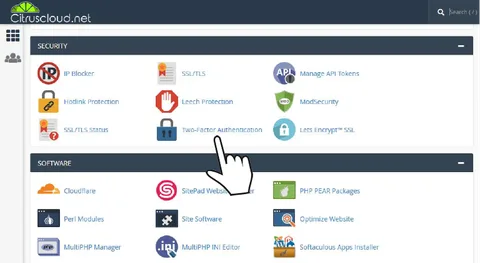
Step 1

cPanel Security menu with Two-Factor Authentication indicated

2

Step 2

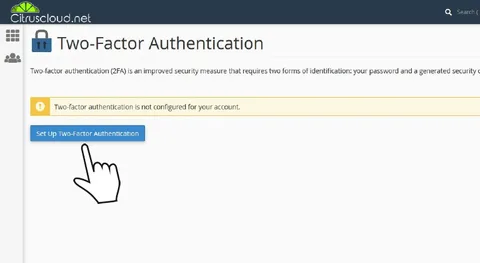
cPanel Set Up Two-Factor Authentication button

3

Step 3

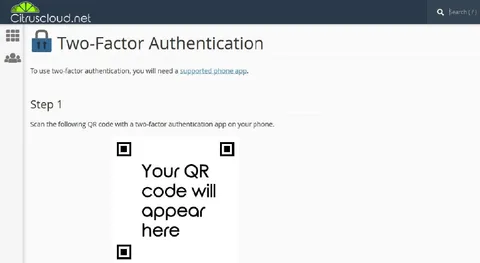
cPanel two-factor authentication step 1, with the QR code area still showing the placeholder

Done!

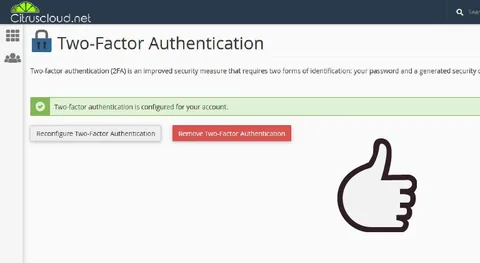
cPanel showing two-factor authentication configured, with reconfigure and remove

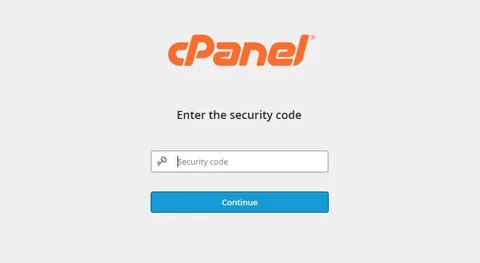
You will be asked for a code when you sign in

cPanel sign-in screen asking for a security code

See the Difference

High Performance PCIe NVMe

Hosting Plans

30 Days of Free Hosting

Receive a FREE month of Hosting credit when you purchase a yearly subscription plan.

Learn How

Lets start your Wordpress site in minutes.

Hosting Plans